> ## Documentation Index
> Fetch the complete documentation index at: https://docs.superfuel.io/llms.txt
> Use this file to discover all available pages before exploring further.
# Connect your account
### Step 1: Connect your Amazon account
* Accept the email invitation link sent to your email from Superfuel. (If you don't find the email in your inbox, check your spam folder).
* Navigate to **Amazon Connections** on Superfuel
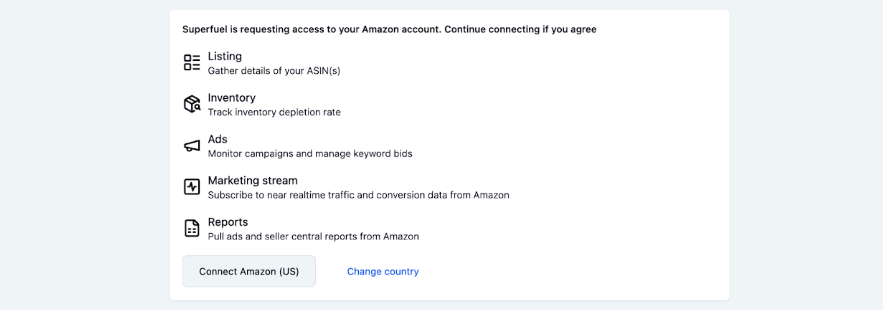
* You'll be redirected to Amazon for making the connection. Use an Amazon email ID with administrative permissions to connect Amazon marketplace apps.
 ### Step 2: Connect your Amazon ads account
**Find Your Merchant ID (Two Methods):**
**Method 1 - Via Product Listing:**
* Click the "sold by" link on any of your product listings
* This navigates to your storefront
* Look at the URL on your storefront page
* The Merchant ID is the string of numbers following "me=" in the URL
**Method 2 - Via Seller Central:**
* Log into Amazon Seller Central
* Go to Settings > Account Info
* In the Business Information section, click Merchant Token
* This displays your Merchant ID (same as your Seller ID)
Connect the Merchant ID (example 12345 below) that manages all your ad campaigns and sales.
### Step 2: Connect your Amazon ads account
**Find Your Merchant ID (Two Methods):**
**Method 1 - Via Product Listing:**
* Click the "sold by" link on any of your product listings
* This navigates to your storefront
* Look at the URL on your storefront page
* The Merchant ID is the string of numbers following "me=" in the URL
**Method 2 - Via Seller Central:**
* Log into Amazon Seller Central
* Go to Settings > Account Info
* In the Business Information section, click Merchant Token
* This displays your Merchant ID (same as your Seller ID)
Connect the Merchant ID (example 12345 below) that manages all your ad campaigns and sales.
.png?fit=max&auto=format&n=urjWqgaUWBn24YIG&q=85&s=78d875a40594c5d9aa744ae663bf93e8) ### Step 3: Connect your Seller Central account
### Step 3: Connect your Seller Central account
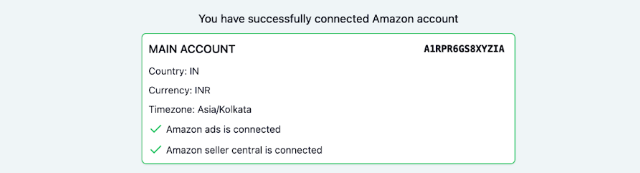
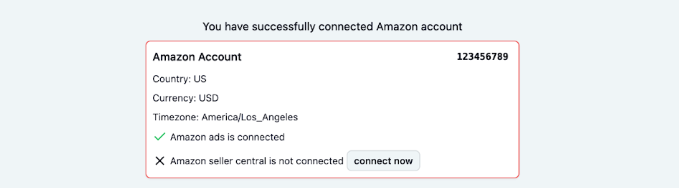 **Successful connection will look like this:**
 Have questions? Reach out to us at [support@superfuel.io](mailto:support@superfuel.io)
Click here to follow our 2 step quickstart guide
## Explore
Automate data fetching, analysis, and actions.
Curated workflows from other sellers.
See how successful sellers use Superfuel
Have questions? Reach out to us at [support@superfuel.io](mailto:support@superfuel.io)
Click here to follow our 2 step quickstart guide
## Explore
Automate data fetching, analysis, and actions.
Curated workflows from other sellers.
See how successful sellers use Superfuel