> ## Documentation Index
> Fetch the complete documentation index at: https://docs.superfuel.io/llms.txt
> Use this file to discover all available pages before exploring further.
# Run your first Workflow
> Create your first Workflow in 10 Minutes. In this section we'll cover how you can run a Workflow from the Workflow Library, as well as how you can create your own custom Workflow.
#### **Step 1: Run your first Workflow from Workflow Library**
Let's start with a simple Workflow to identify image improvement insights from competitor images:
You'll find Workflow Library in the Workflows section
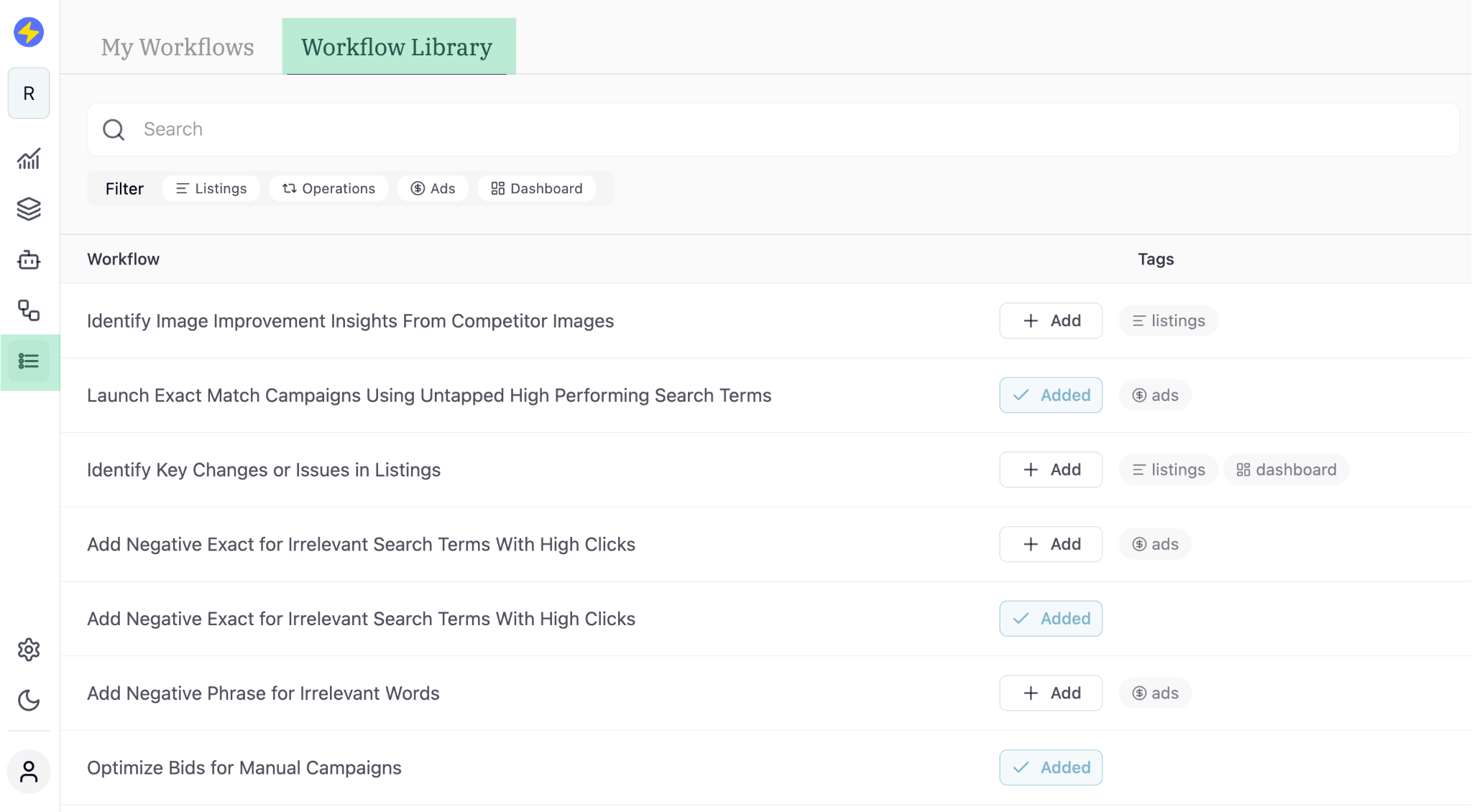 Click on "Identify Image Improvement Insights From Competitor Images" to see its logic/steps
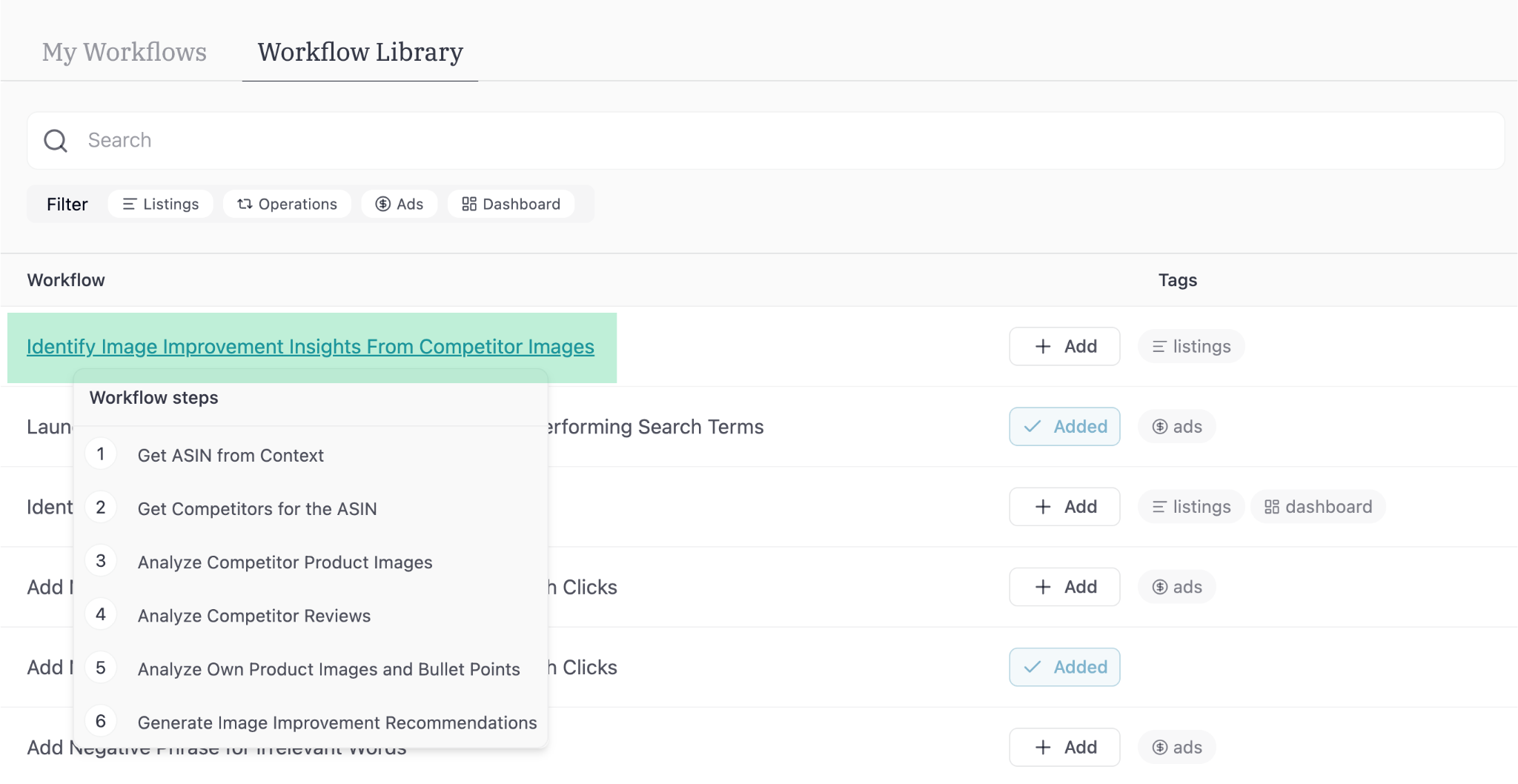 Logic/steps:
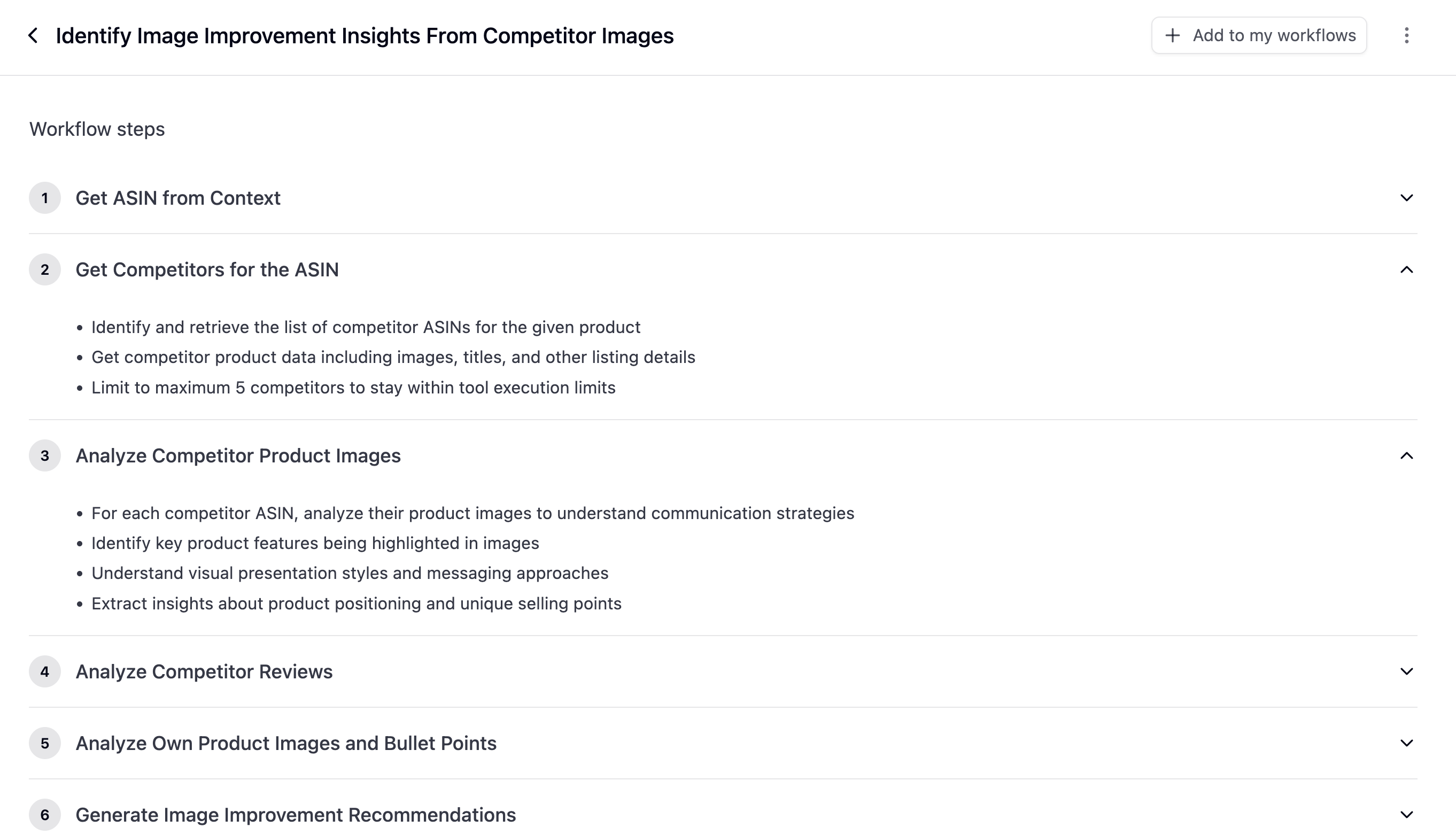
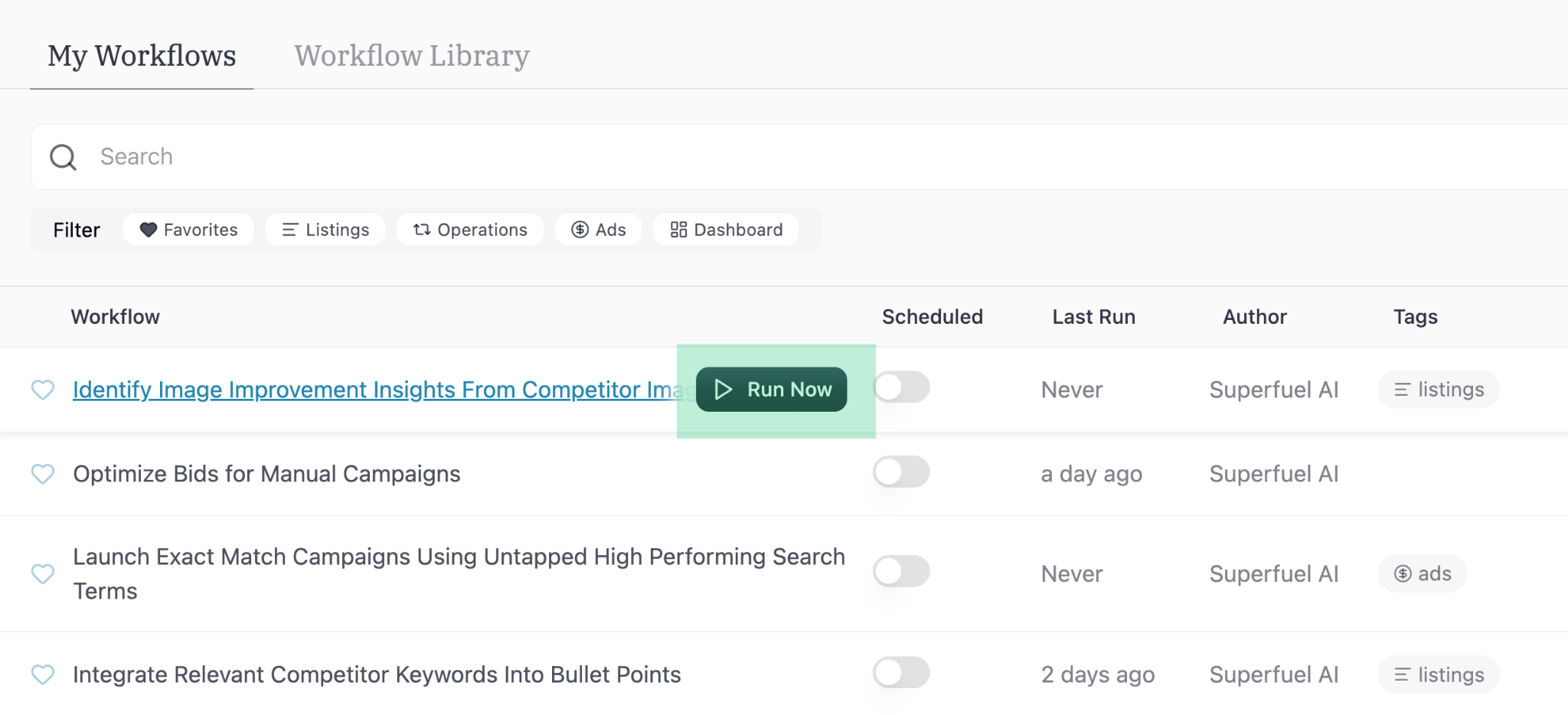
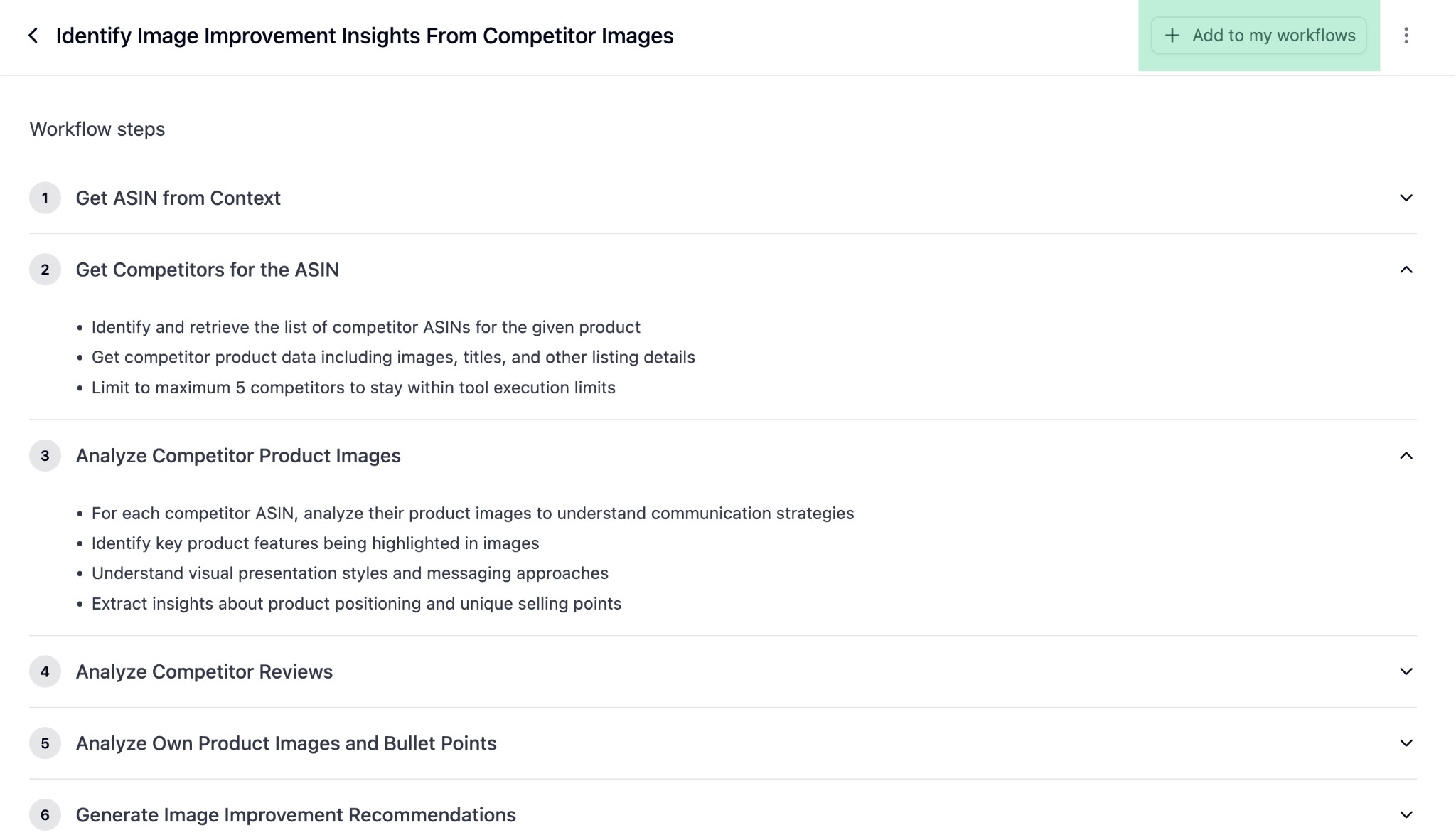 Find the newly added workflow in your "Workflows" section and click "Run now"
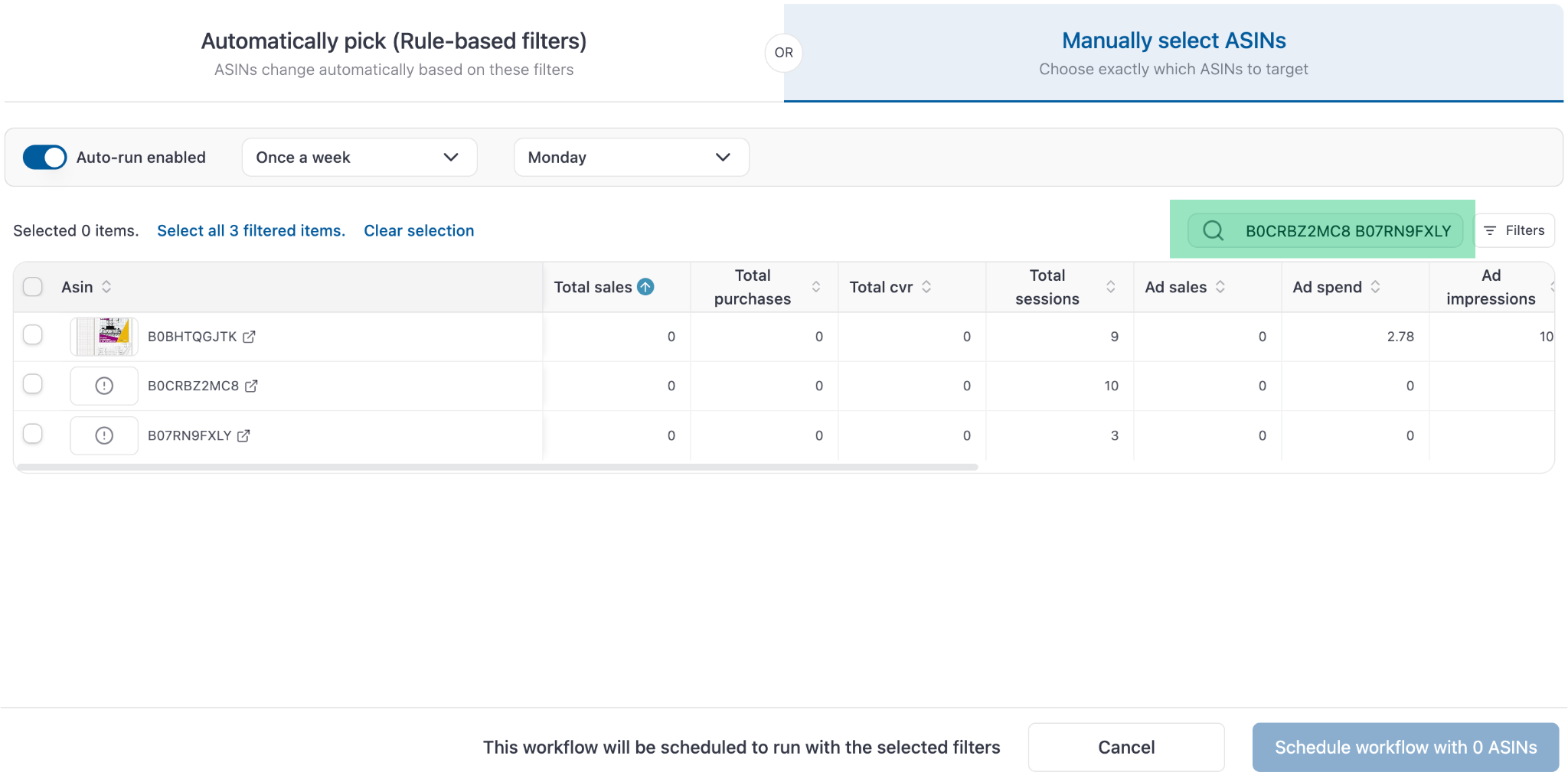
 Select ASINs from the list (sort by sales if needed) or paste your required ASINs
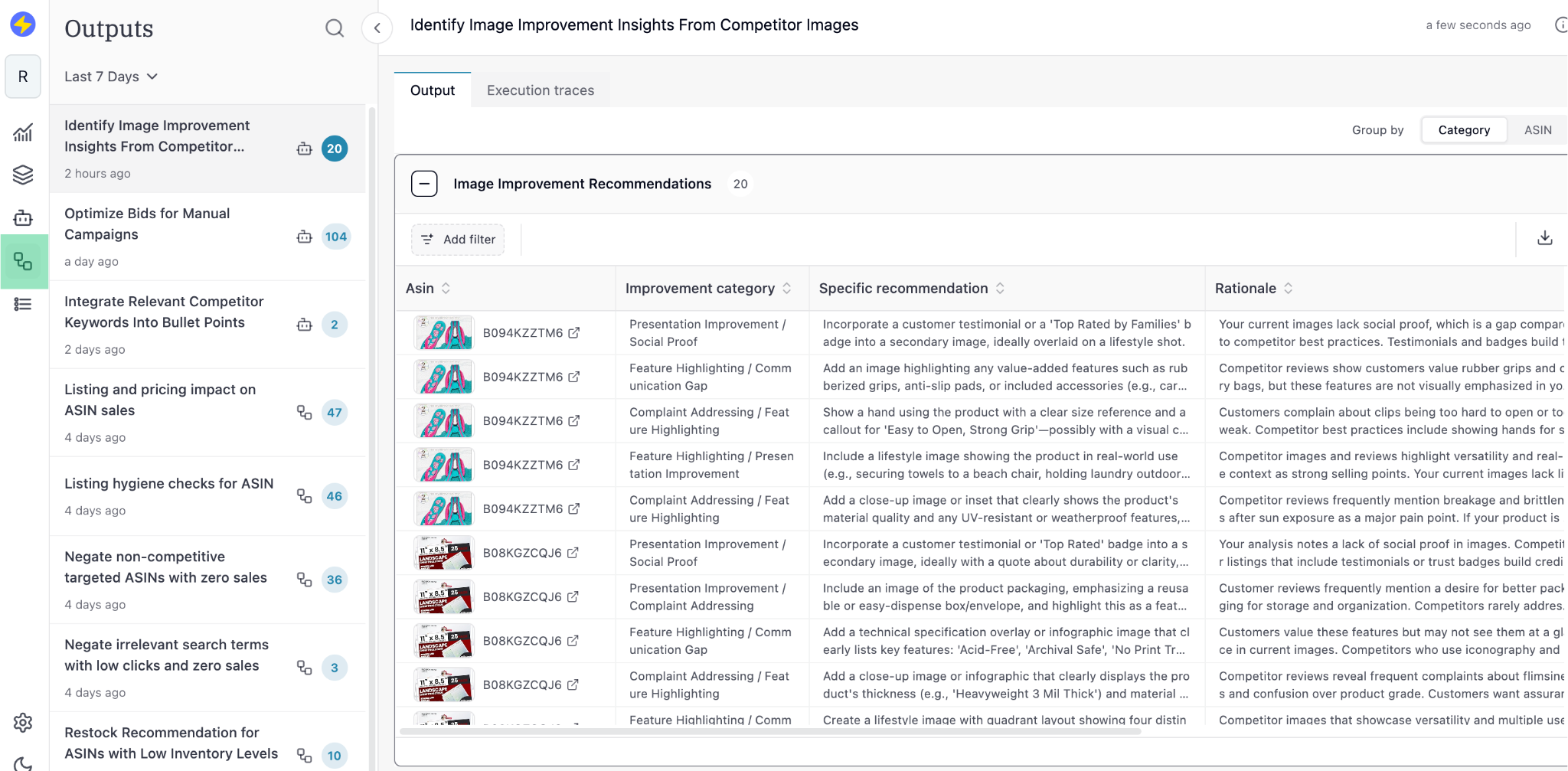
 A new Output tab will open with the Workflow's output for your selected ASIN (output generation will take a few minutes)
 #### **Step 2: Create your first Custom Workflow**
Now that you have used a Workflow from the Library, let's create a custom workflow. This one to update bullet points using relevant competitor ranking keywords:
Type in the following prompt:
*"Identify 7-8 top competitors for my ASIN with similar features and pricing. Find the keywords they rank for within the top 30 organic positions. Filter keywords directly relevant to my product with a search volume over 500. Integrate these keywords into my bullet points naturally, making only minimal changes to the existing bullets."*
#### **Step 2: Create your first Custom Workflow**
Now that you have used a Workflow from the Library, let's create a custom workflow. This one to update bullet points using relevant competitor ranking keywords:
Type in the following prompt:
*"Identify 7-8 top competitors for my ASIN with similar features and pricing. Find the keywords they rank for within the top 30 organic positions. Filter keywords directly relevant to my product with a search volume over 500. Integrate these keywords into my bullet points naturally, making only minimal changes to the existing bullets."*
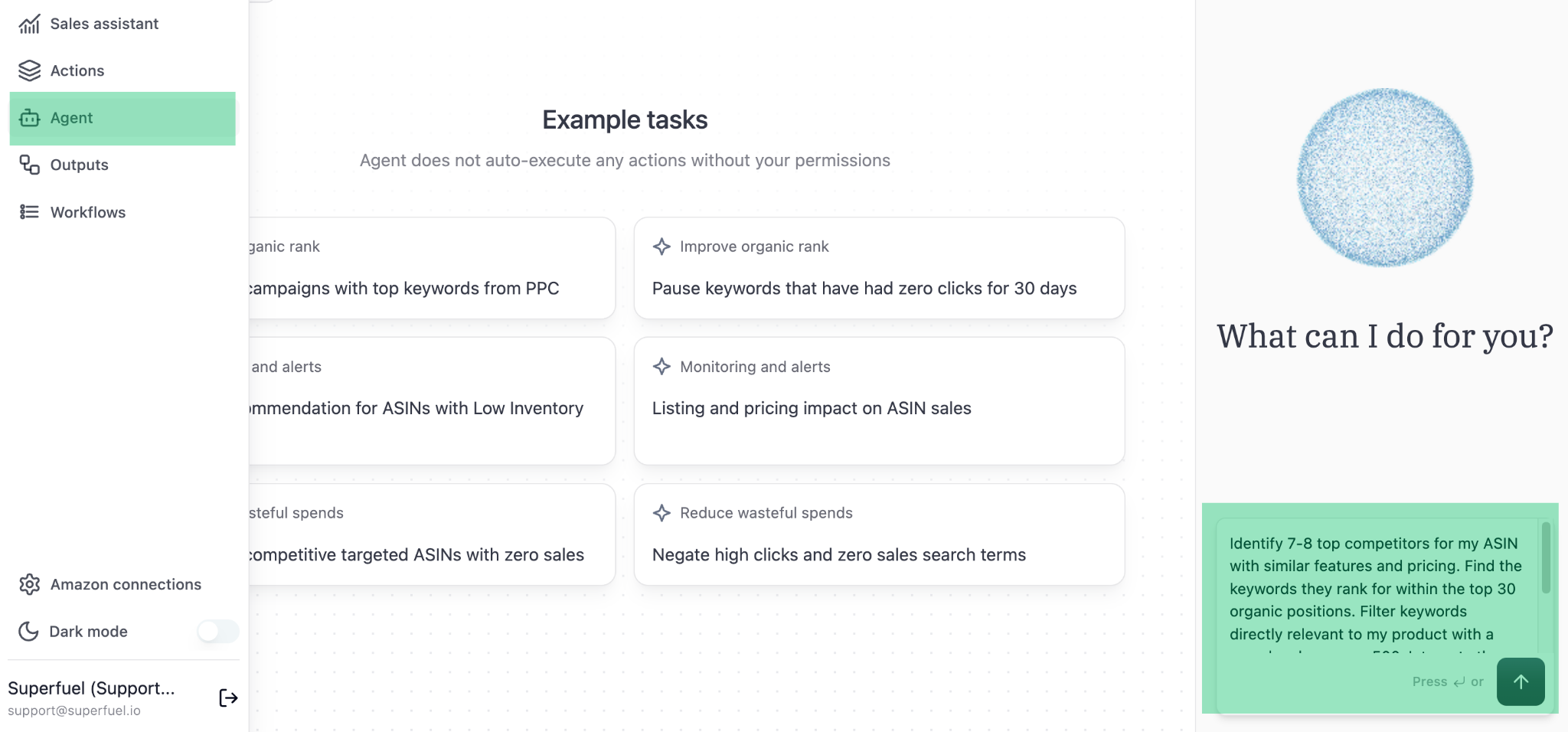 *ASINs for the workflow can be provided upfront in the first message, or selected from the master ASIN list after the test output is generated.*
Review the steps and ask the Agent to make changes if needed. If no changes are required, tell the Agent to go ahead with generating the test output.
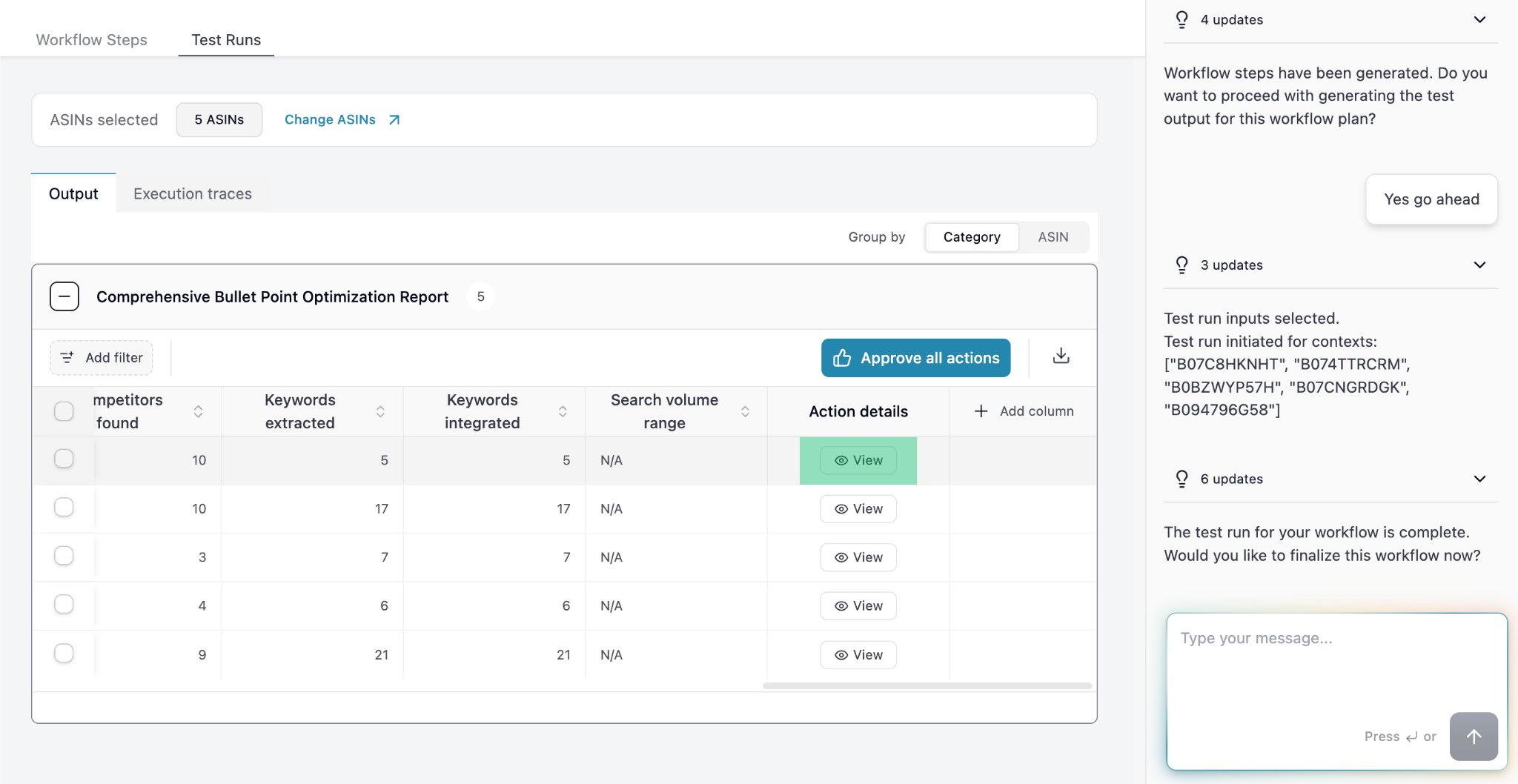
The Agent will generate output on random 4-5 ASINs to show what the output looks like. If you're happy with the output, you can select specific ASINs you want to run the workflow on.
*ASINs for the workflow can be provided upfront in the first message, or selected from the master ASIN list after the test output is generated.*
Review the steps and ask the Agent to make changes if needed. If no changes are required, tell the Agent to go ahead with generating the test output.
The Agent will generate output on random 4-5 ASINs to show what the output looks like. If you're happy with the output, you can select specific ASINs you want to run the workflow on.
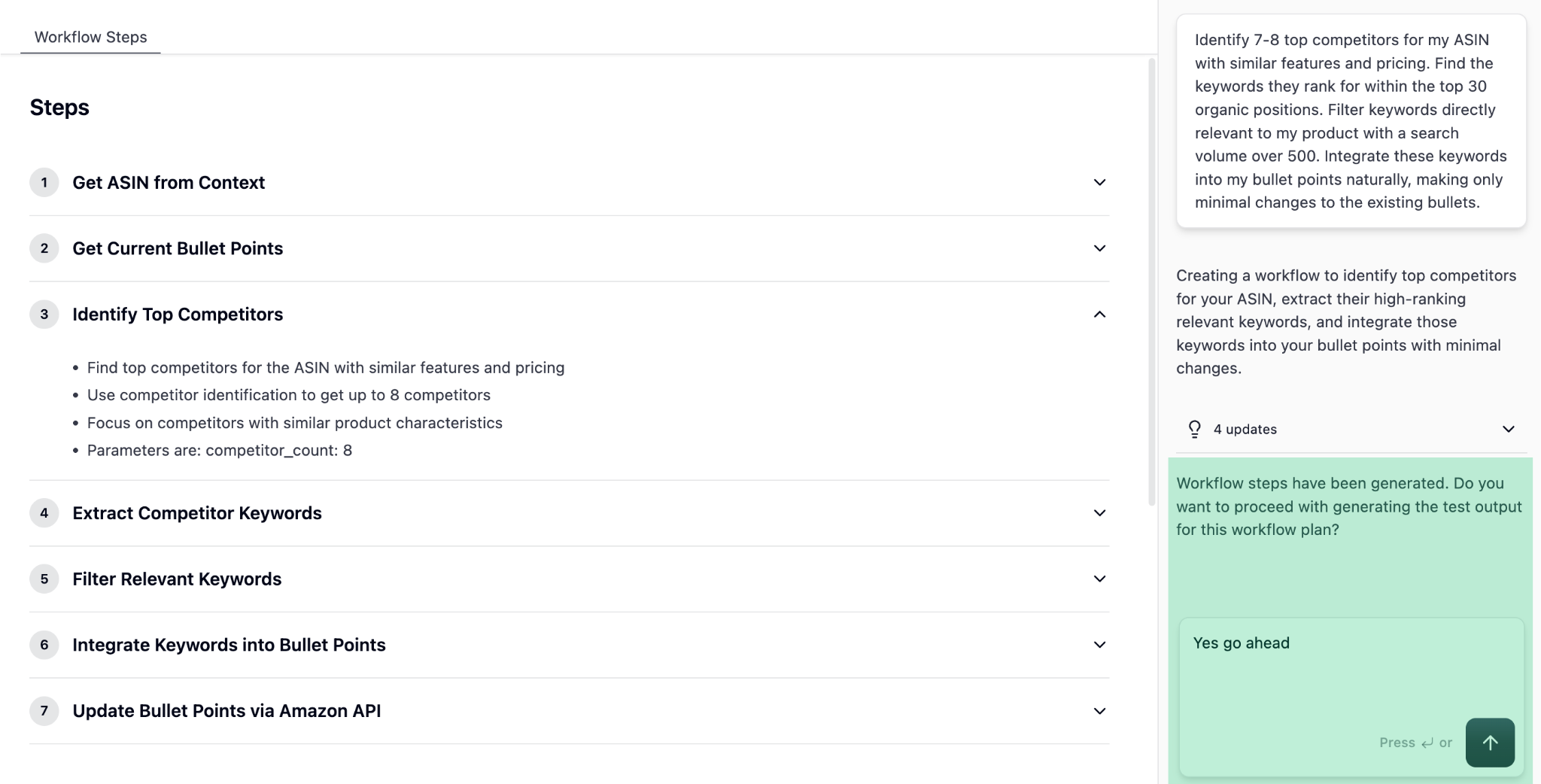 Don't worry, the Agent won't execute anything automatically. It will execute only after your approval once you review the output.
Click on view to see specific ASIN's Workflow output
Don't worry, the Agent won't execute anything automatically. It will execute only after your approval once you review the output.
Click on view to see specific ASIN's Workflow output
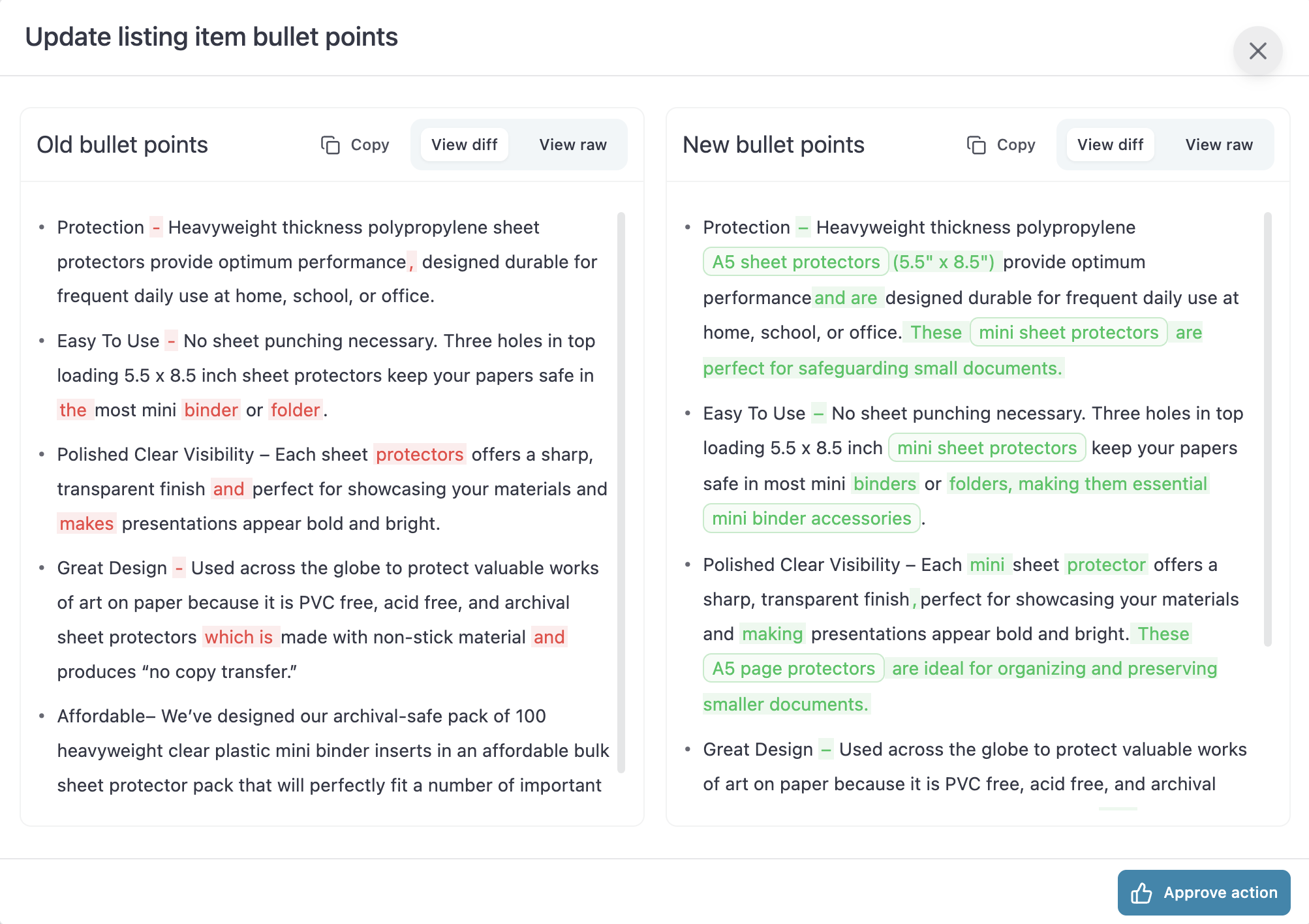
 You can Approve the bullet point suggestions to make these changes live on Seller Central (no separate manual action required).
 If the output is not as per your expectation, continue chatting with the Agent and mention what exactly needs to be improved in the Workflow.
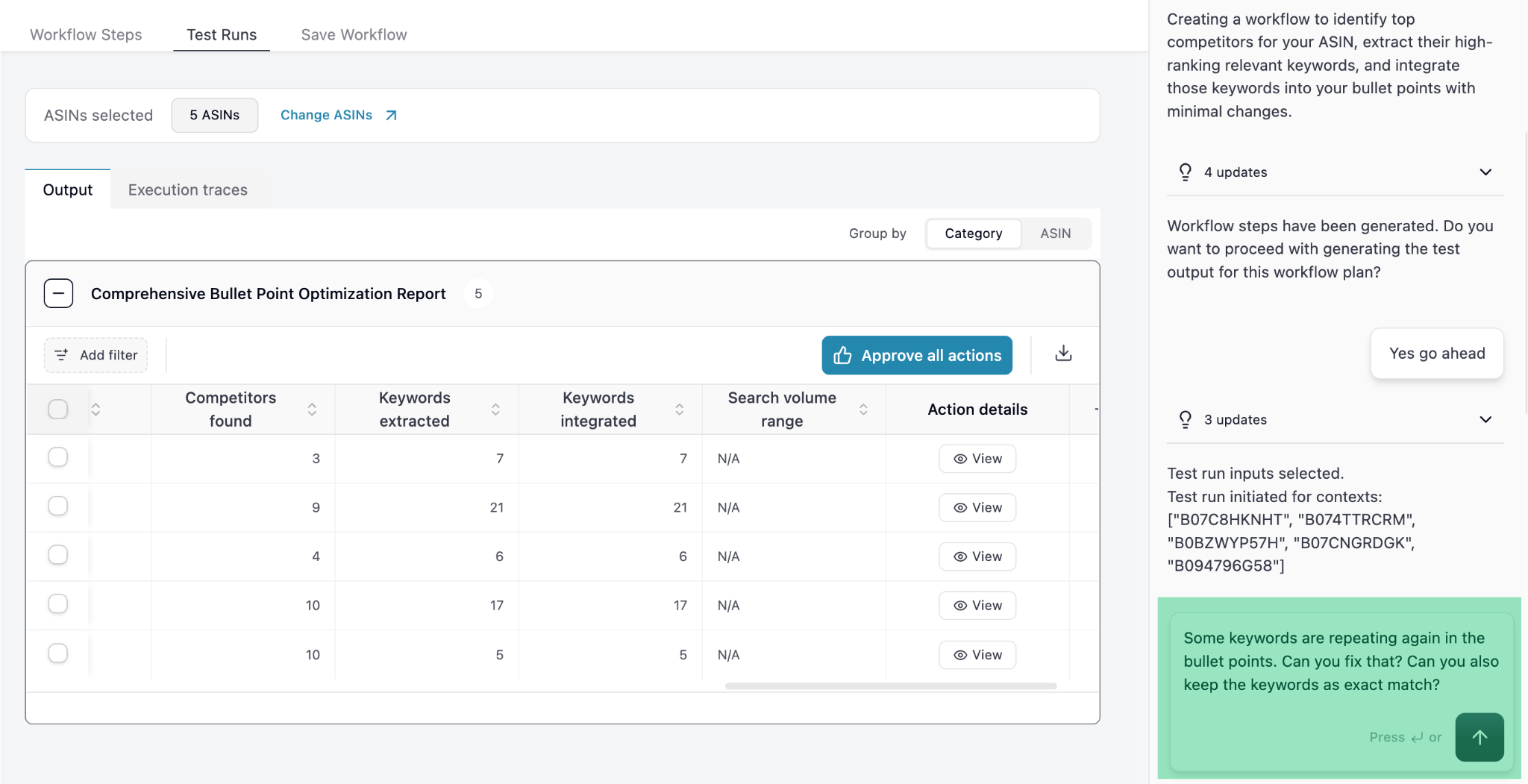 To run the workflow on specific ASINs, click on "Change ASINs".
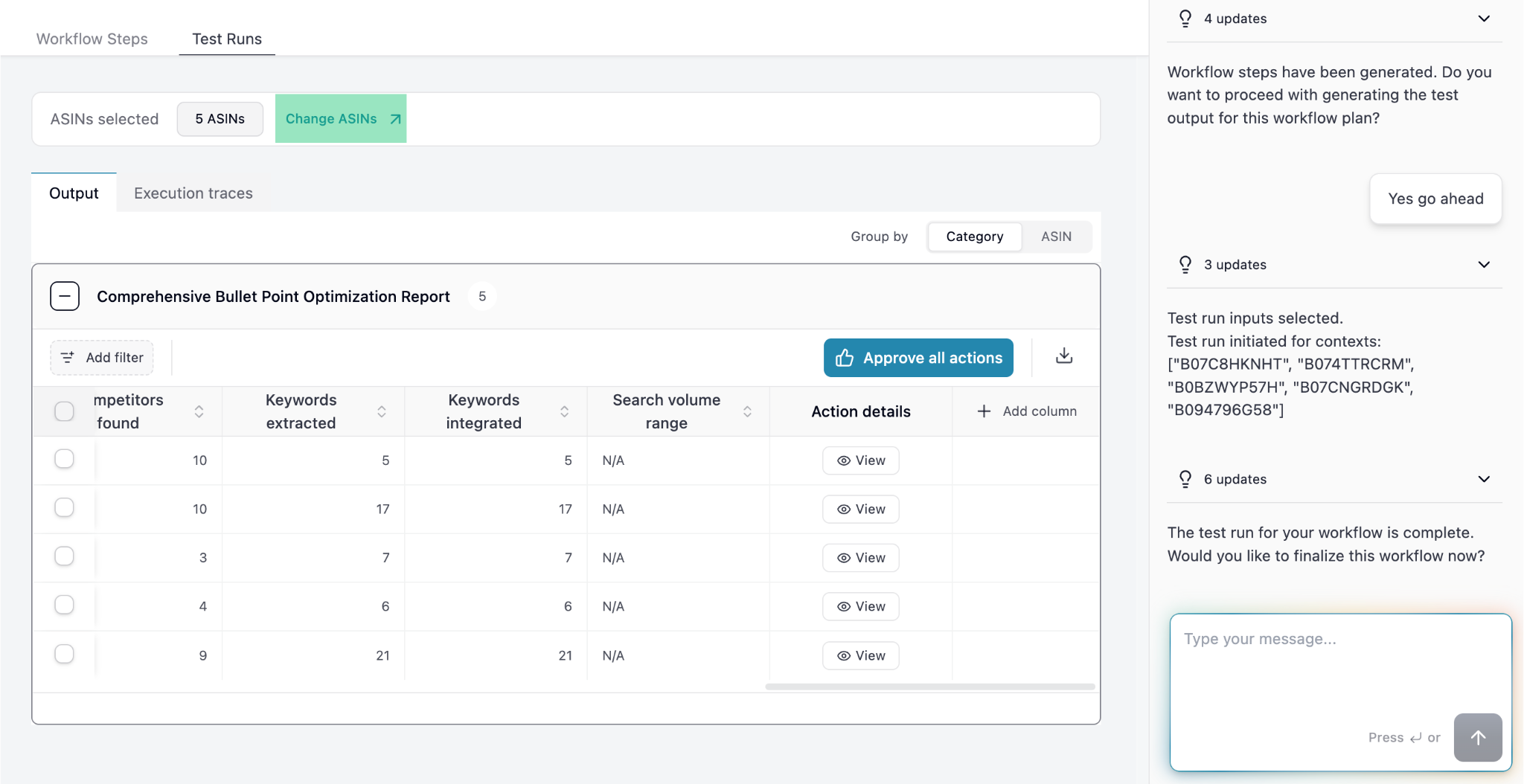 To save this workflow for future use, ask the Agent to Save it.
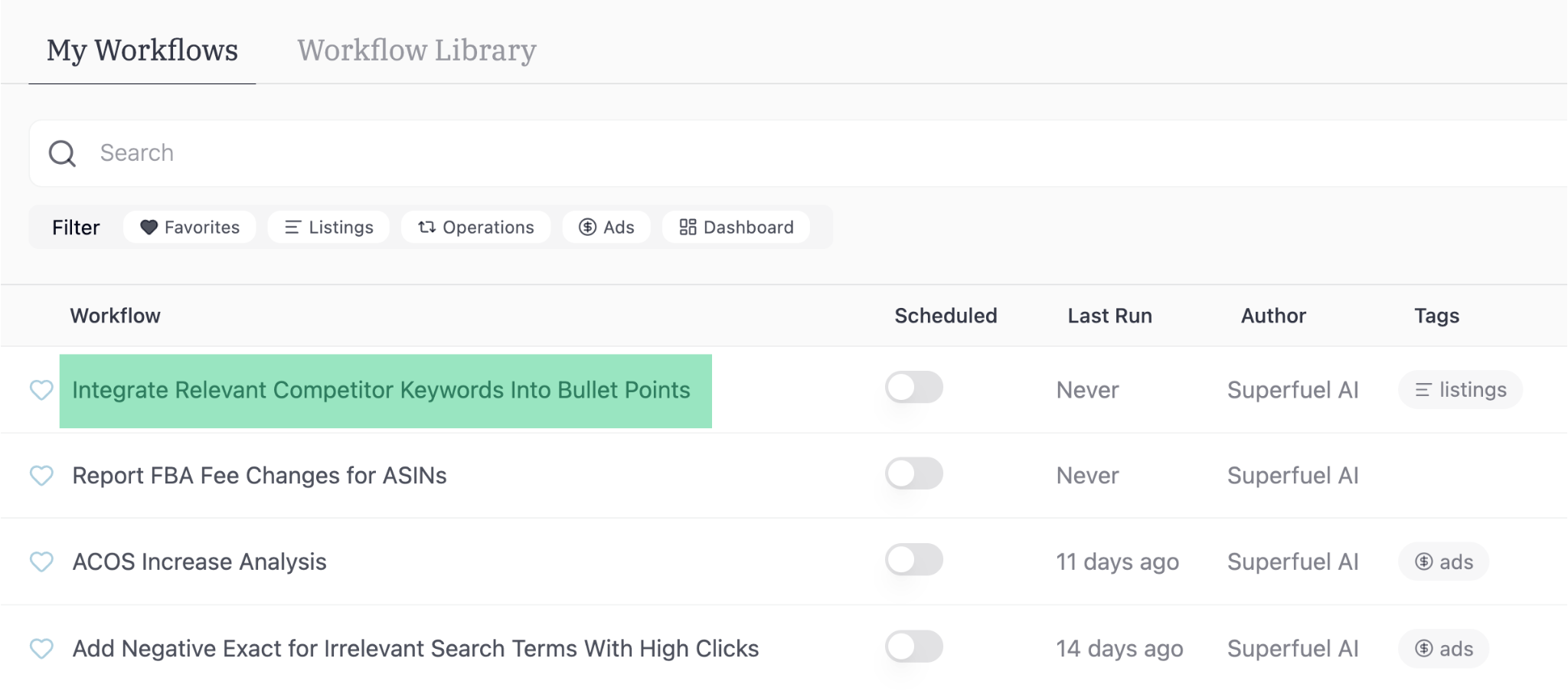
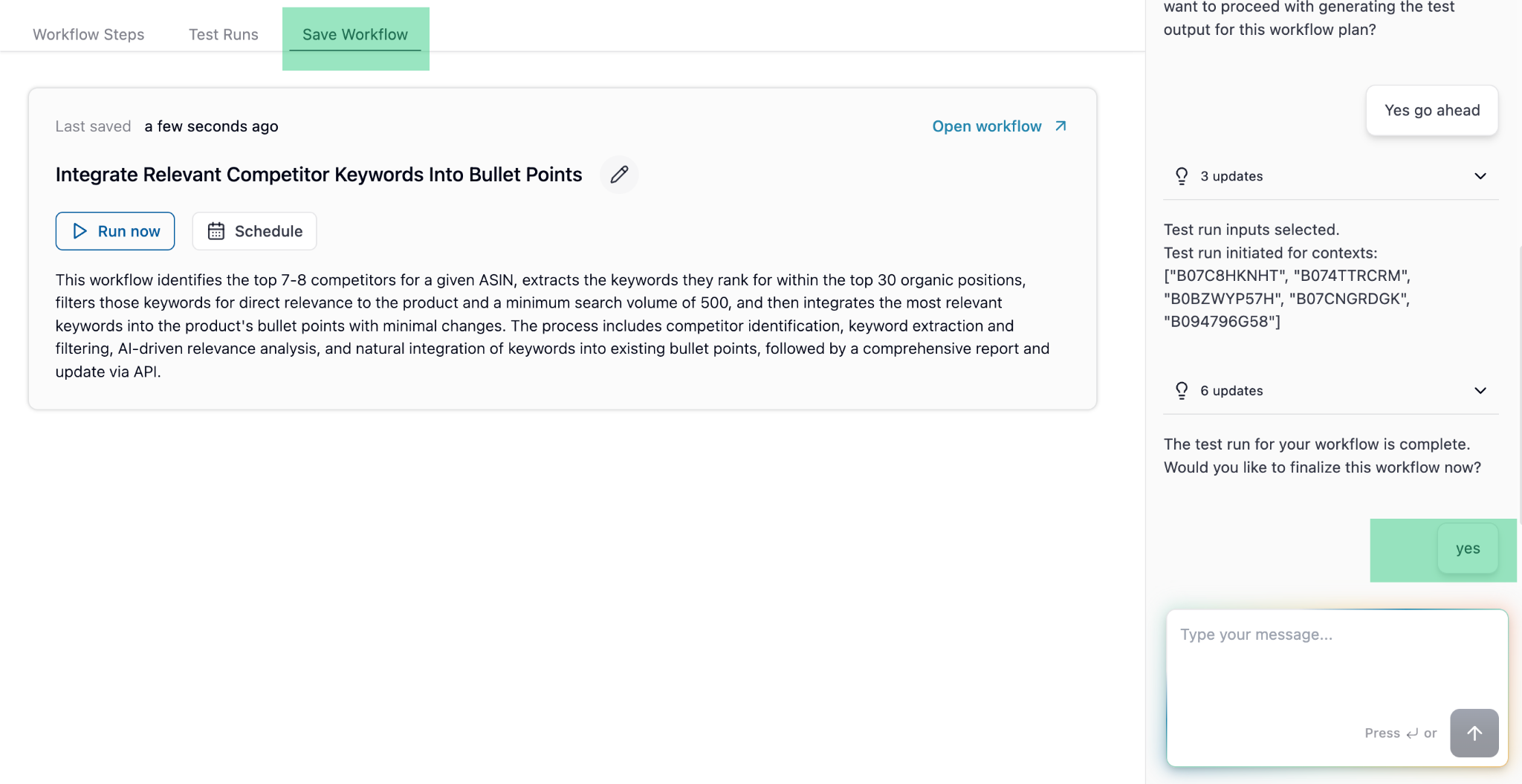 Once you Save it, the Workflow will show up in "My Workflows", so you can run it again or schedule it.
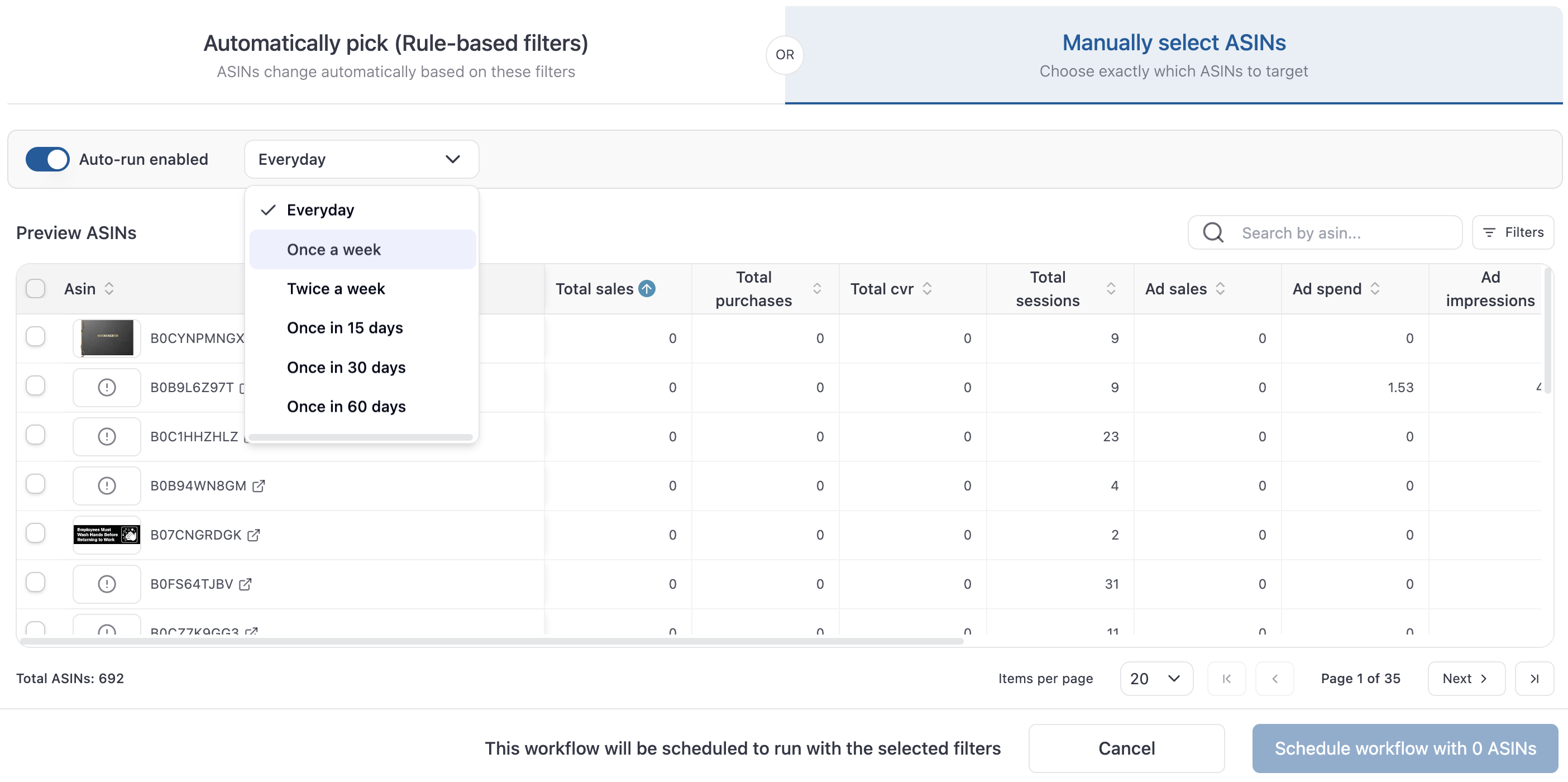
 To schedule it as recurring task, use the Schedule option.
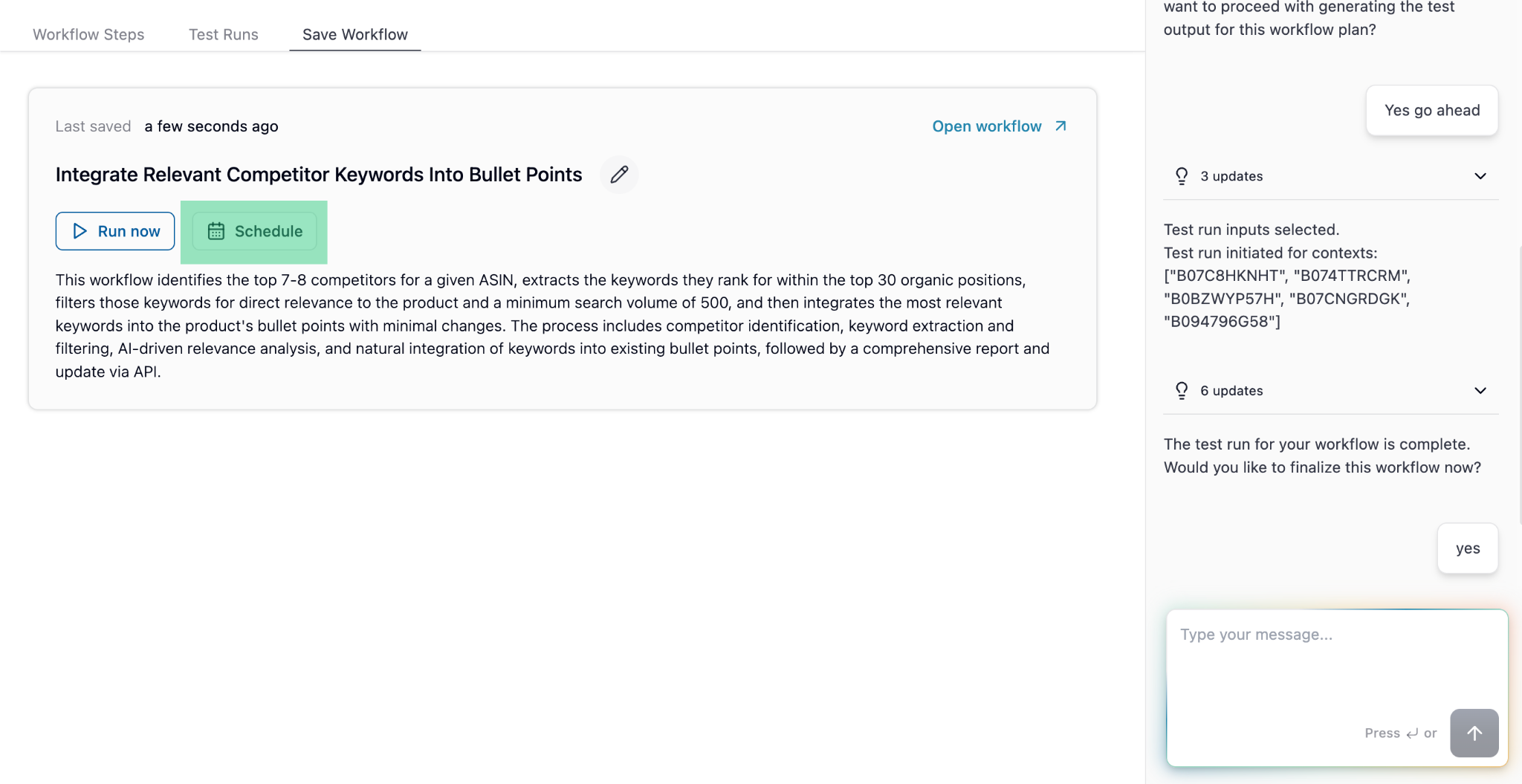 You can schedule it to be run daily, weekly or monthly. You can select all the ASINs you want to run the scheduled workflow on.
 Have questions? Reach out to us at [support@superfuel.io](mailto:support@superfuel.io)
## Explore
Automate data fetching, analysis, and actions.
Curated workflows from other sellers.
See how successful sellers use Superfuel
Have questions? Reach out to us at [support@superfuel.io](mailto:support@superfuel.io)
## Explore
Automate data fetching, analysis, and actions.
Curated workflows from other sellers.
See how successful sellers use Superfuel